
Using Voice Memos in Salesforce
You can send voice memos directly from the Linq Chat window inside Salesforce. This makes it easy to share quick, high-context updates with leads and contacts without typing long messages.
Pre-requisites
-
The Linq–Salesforce integration is installed and configured.
-
You have access to the Linq Chat component on Lead/Contact records.
-
Your browser has permission to use your microphone.
If you’re not seeing the voice memo option, check with your Salesforce or Linq admin(PSM).
Where to Send Voice Memos
Voice memos are sent from the Linq Chat panel on a:
-
Lead record
-
Contact record
Each memo is tied to that specific lead/contact, so your team can see it in context with the rest of the conversation.
How to Send a Voice Memo from Salesforce
-
Open a Lead or Contact
-
In Salesforce, go to Leads or Contacts.

-
Click on the record you want to message.
-
-
Open the Linq Chat Component
-
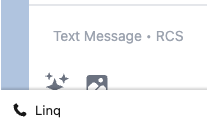
Locate the Linq Chat panel on the record page.
-
You’ll see the existing conversation history plus the message composer at the bottom.
-
-
Start a Voice Memo
-
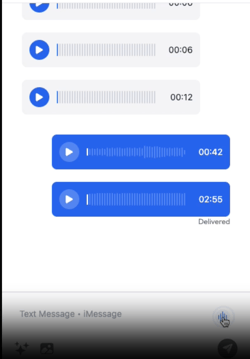
In the composer, click the microphone icon (voice memo button).
-
Your browser may prompt you to allow microphone access—click Allow to continue.
-
-
Record Your Message
-
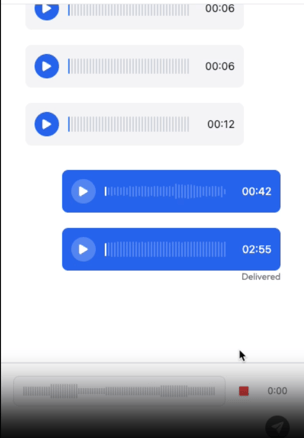
Once recording starts, speak clearly into your microphone.
-
You’ll see an indicator (timer or recording status) while it’s capturing audio.
-
-
Review or Re-record (if available in your UI)
-
When you’re done, click Stop.
-
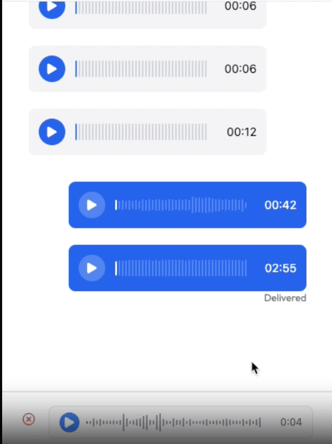
If your setup supports it, you can:
-
Play back the memo to review.
-
Discard and re-record if you’re not satisfied.
-
-
-
Send the Voice Memo
-
Click Send.
-
The voice memo will appear in the chat thread as an audio message the recipient can play.
-