
The Linq–Salesforce integration lets you place calls and manage text conversations with your leads and contacts without leaving Salesforce.
This article walks through:
-
Where to find the Linq Dialer
-
How to place outbound calls from Salesforce
-
How to view and manage Linq Chat conversations on Lead and Contact records
Prerequisites:
-
Your Salesforce org has the Linq integration installed and configured.
-
Your user has access to the Linq Dialer and Linq Chat components.
-
You are logged into Linq (if your org requires authentication for the dialer/chat).
If you’re not seeing the dialer or chat components described below, contact your partner success manager(Linq Blue), or contact@linqapp.com(Linq One).
Step 1: Using the Linq Dialer
The Linq Dialer allows you to initiate outbound calls directly from Salesforce.
1. Open the Linq Dialer
-
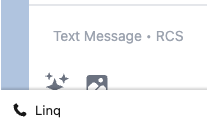
In Salesforce, look at the bottom-left corner of the interface.
-
You’ll see the Linq Dialer as a utility item (often next to other docked utilities).
.png?width=280&height=487&name=image%20(22).png)
.png?width=278&height=484&name=image%20(23).png)
The dialer can be opened from anywhere in Salesforce, so you don’t need to leave the page you’re working on.
2. Place an Outbound Call
You can start a call in two ways:
Option A – Call directly from the Dialer
-
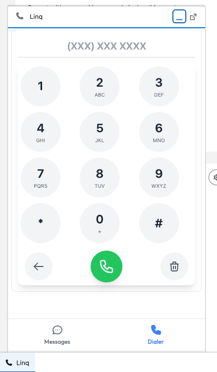
Open the Linq Dialer panel.
-
Enter the phone number you want to call, or select a recent contact (if available).
-
Click Call to begin the outbound call.
Option B – Call from a Lead or Contact
-
Open a Lead or Contact record in Salesforce.
-
If configured, you can initiate a call from within the Linq chat/call component on that record (for example, by clicking a call icon or number).
-
The call will be placed via your Linq Phone line, while you stay inside Salesforce.
Step 2: Managing Conversations in Salesforce
The Linq–Salesforce integration uses an embedded Linq Chat component on Lead and Contact records so you can view and manage conversations in context.
1. Open a Lead or Contact Record
-
Go to Leads or Contacts in Salesforce.
-
Click on the lead or contact you want to work with.
2. Access the Linq Chat Component
-
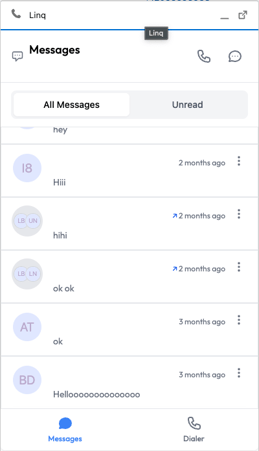
On the record page layout, locate the Linq Chat component.
-
This panel shows:
-
The current active conversation (if one exists)
-
Historical messages with that lead/contact
-
3. View & Send Messages
Within the Linq Chat component you can:
-
View conversation history
-
Scroll through previous messages to review context, past replies, and any prior interactions.
-
-
Send new messages
-
Type your message in the input field.
-
Click Send to deliver it via your Linq Phone line.
-
-
Continue existing conversations
-
Respond to open threads without leaving the lead/contact record.
-
This keeps all communication tied to the correct lead/contact, making it easier for sales and support to stay in sync.