
Smart Number Assignment in Salesforce
Smart Number Assignment automatically routes incoming conversations to the right user based on past history, workload, and number health. This helps keep chats “sticky” to the same owner while balancing new work across your team.
Turning On Smart Number Assignment
You enable Smart Number Assignment from the Linq app inside Salesforce.
Steps
-
Open the Linq App
-
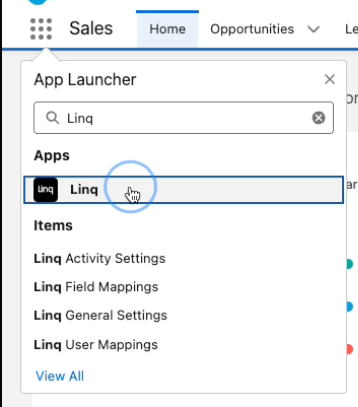
In Salesforce, click the App Launcher (9-dot grid in the top-left).
-
Search for and select the Linq app (or the relevant Linq app in your org).
-
-
Enable Smart Number Assignment
-
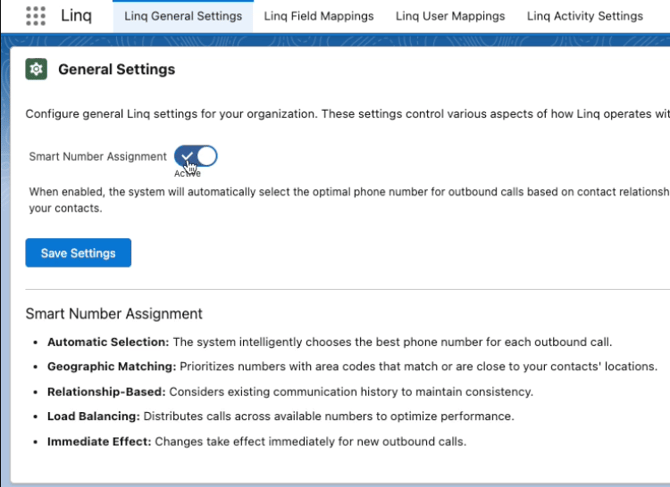
Find the Smart Number Assignment setting.
-
Toggle it On.
-
-
Confirm in the Sales App
-
Switch back to your main Sales app.
-
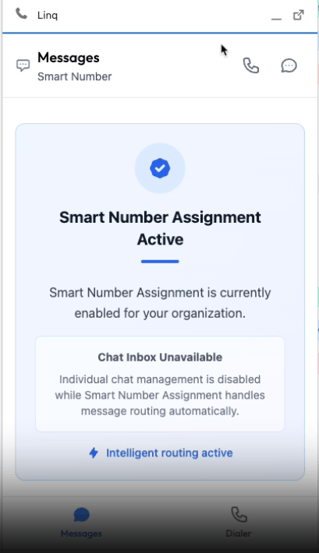
Open the Linq Inbox (Utility Item at the bottom of the screen).
-
You should now see that Smart Number Assignment is turned on.
-
When Smart Number Assignment Applies
Smart Number Assignment is used when:
-
A new inbound message comes in and you’re using Linq’s Salesforce integration.
-
The org has Smart Number Assignment toggled On in General Settings.
It does not replace your normal Salesforce assignment rules (Leads, Cases, etc.), but works alongside them to decide:
- Smart number assignment will override any existing user mappings under the Linq settings in Salesforce.
-
Which Linq user should handle a given conversation
-
Which Linq number should be used (based on the user/number mapping and rules above)