
Join the Linq Zero Mobile Beta (TestFlight)
You can try the Linq Zero mobile app early by joining our iOS beta through TestFlight.
Before You Start
-
Device: iPhone or iPad running iOS with access to the App Store
-
Account: Active Linq Zero account (same email you’ll use to log in on mobile)
Step 1 – Sign in to Linq Zero on your phone
-
Open a browser on your phone.
-
Go to
zero.linqapp.com. -
Sign in with your Linq credentials.
Step 2 – Open the Account Page
-
In the left-hand navigation, click the Account icon (person icon at the bottom).
-
You’ll land on the Account page for your profile.

Step 3 – Join the TestFlight Beta
-
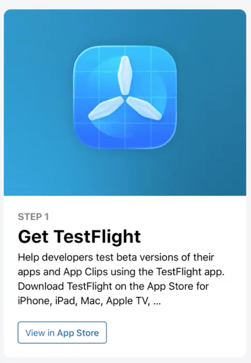
At the top of the Account page, find the banner that says “Get TestFlight”.
-
Click View in App Store.
-
This will download Testflight to your phone.
Step 4 – Install Linq Zero from the App Store
-
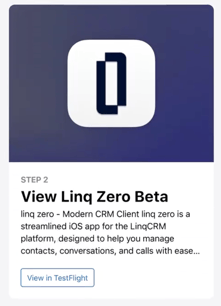
On the Linq Zero Beta invite page, tap View in TestFlight.
-
Install TestFlight on your iPhone/iPad. or use
Testflight link -
Once TestFlight is installed, return to the invite page or open TestFlight directly.
Step 6 – Install and Open Linq Zero
-
After accepting, TestFlight will download Linq Zero to your device.
-
When it finishes, tap Open from TestFlight or find Linq Zero on your home screen.

-
Sign in using the same email and password you use at
zero.linqapp.com.
You’re now running the Linq Zero iOS beta and can manage contacts, conversations, and calls on the go.