
How to Set Up and Display Linq Text Messages in HubSpot
You can send, receive, and view text messages directly on HubSpot contact records using the Linq integration. This guide walks you through:
-
Adding the Linq SMS card to the contact view
-
Enabling Linq SMS in Filtered activity
-
Sending messages from the contact record
1. Add the Linq SMS Card to the Contact View
-
Open any Contact record in HubSpot.
-
In the right-hand sidebar, click Customize.
-
Make sure you’re on the Default view tab.
-
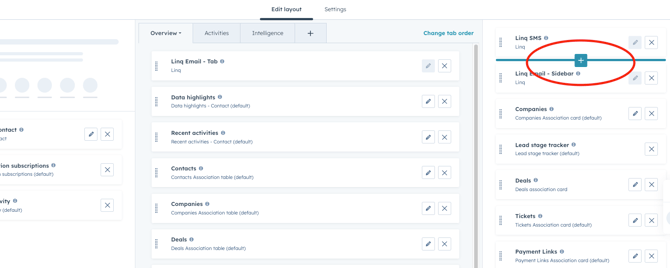
Click the + button between any of the existing cards where you want Linq SMS to appear.
-
In the panel that opens:
-
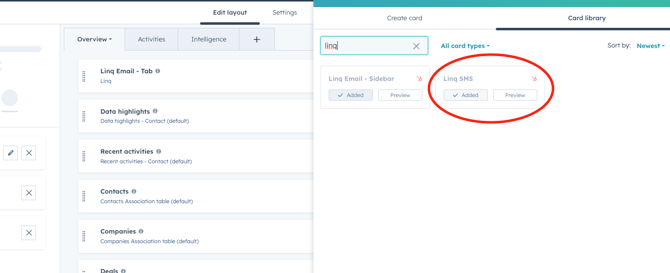
Select Add a card.
-
Click Card library.
-
Search for “Linq”.
-
-
Select Linq SMS from the results.
-
Drag the card up or down to position it where you want in the sidebar.
-
Click Save and exit.
The Linq SMS card is now visible on all contacts using this default view.
2. Show Linq Messages in Activity Timeline
To make sure texts appear in the contact’s activity feed:
-
On the contact record, click the Activities tab.
-
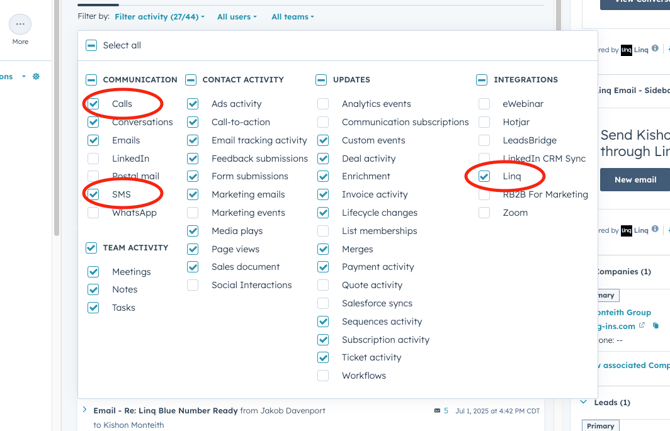
Click Filtered activity.
-
Check the boxes for:
-
Calls
-
SMS
-
Linq
-
-
Close the filter panel.
Now, any calls and Linq-powered text messages will display in the activity timeline for that contact.
3. Sending a Text from HubSpot
-
On the contact record, locate the Linq SMS card.
-
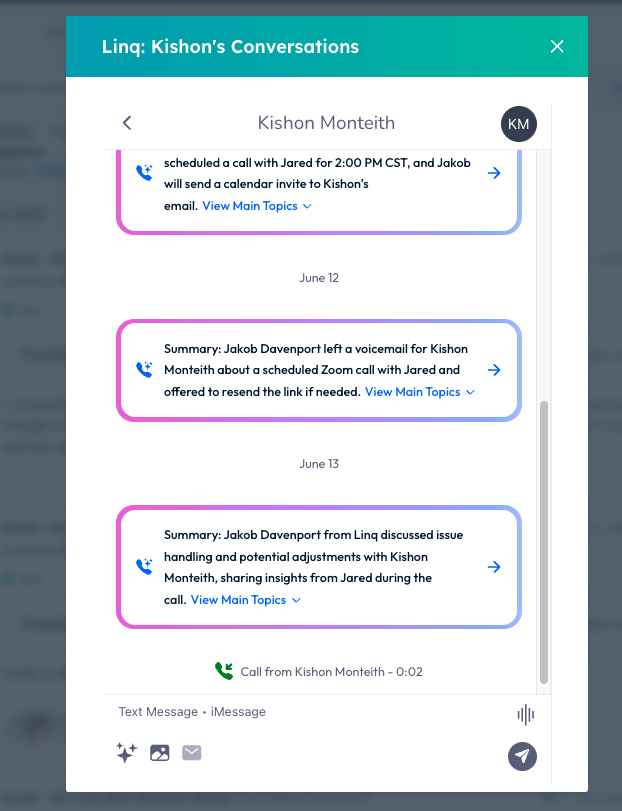
Click View conversation.
-
If prompted, log in to your Linq account.
-
Once authenticated, you’ll see the conversation view with that contact’s phone number and any past messages.
-
Type your message in the text field and send.