
1. Find Your Zapier API Key in the Linq App
-
Log into www.linqapp.com/admin
-
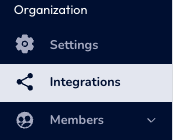
Click the integrations icon in the left column
-
Click on existing Zapier integration

-
At the top of this screen, you’ll see your Zapier API key displayed.
-
Tap to copy it so you can paste it into Zapier.

-
Keep this key safe—anyone with it can connect to your Linq data via Zapier.
2. Connect Linq to Zapier
Once you’ve copied your API key, you’re ready to connect Linq inside Zapier.
-
Log in to your Zapier account.
-
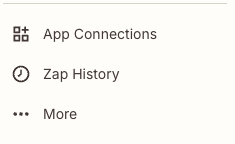
Click App Connections
-
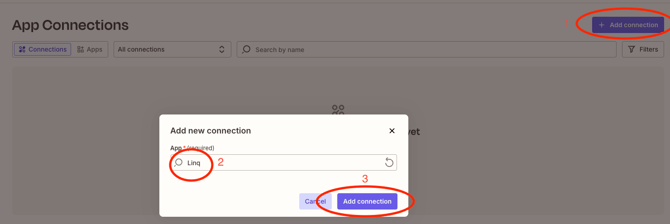
Select Add connection, Search for Linq, Add connection
-
When prompted to connect your Linq account:
-
Click Connect a new account.
-
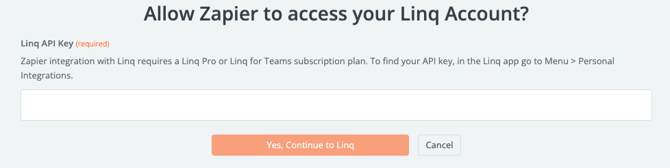
Paste the API key you copied from the Linq app.
-
Confirm to finish the connection.
-
After connecting, Zapier will be able to talk to your Linq account and use it in your automations.
3. Build Your Zap
-
Finish configuring your Linq trigger (e.g., new contact, new event, etc. if available in your environment).
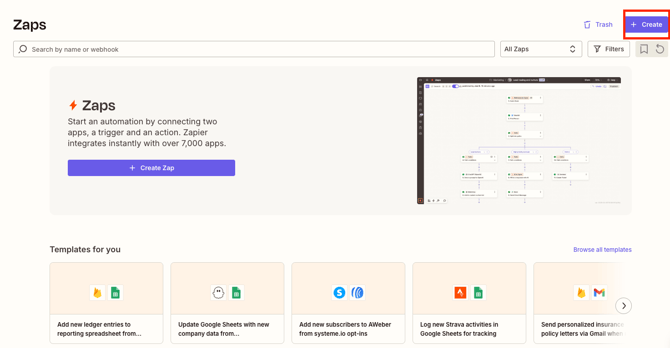
-
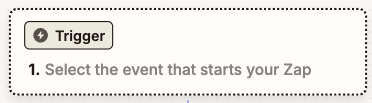
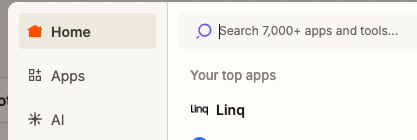
Select Linq as trigger
- Configure the rest of your Zap.
-
Test your Zap to make sure everything is working.
-
Turn your Zap ON to start automating.