
🧾 Understanding and Navigating Integration Logs
Purpose
The Integration Logs section helps admins and support teams track and troubleshoot how Linq communicates with external platforms (like GoHighLevel, HubSpot, or Salesforce).
These logs record each API call Linq sends or receives — including SMS, contact creation, page syncs, or webhook updates — so you can confirm delivery, debug issues, and verify integrations are working as expected.
🔍 Accessing Logs
-
From the Linq Admin Dashboard, go to:
Integrations → Logs -
You’ll see a table of recent requests:
-
Each row represents a single API event between Linq and an external service.
-
Events are listed chronologically (most recent first).
-
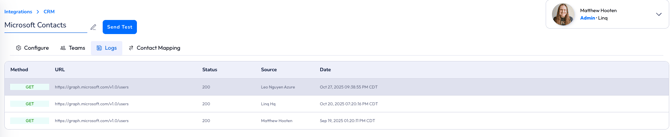
🧭 Log Table Overview
| Column | Description |
|---|---|
| Method | The HTTP method used (e.g., POST, PUT, GET, DELETE). It indicates whether Linq created, updated, or retrieved data. |
| URL | The full endpoint Linq communicated with |
| Status | The HTTP status code returned from the external service. 201 = successfully created, 200 = successful update, 400/500 = error. |
| Source | The user or system process that triggered the event (e.g., User, System). |
| Date | The exact timestamp of when the request occurred (in your org’s timezone). |
⚙️ Request vs. Response
When you click on a log entry, you’ll see Request and Response panels side-by-side:
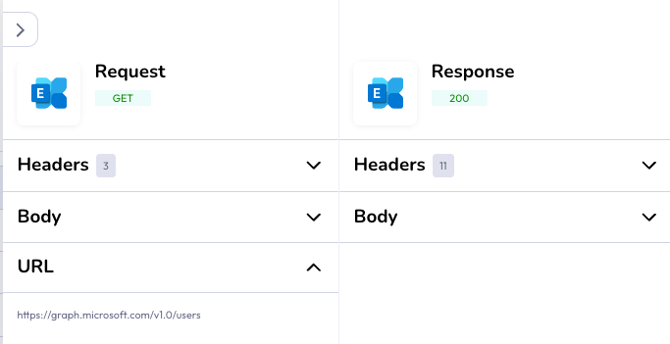
Request Section
| Field | Meaning |
|---|---|
| Headers | Metadata sent along with the API call — like version, user agent, and content type. |
| Body | The payload Linq sent to the external platform. Example: an inbound SMS message, contact info, or webhook event. |
| URL | The destination endpoint receiving the data. |
Response Section
| Field | Meaning |
|---|---|
| Status Code | Confirms whether the request was successful (200, 201) or failed (400+). |
| Headers | Technical metadata from the receiving server (e.g., rate limits, security headers). |
| Body | The content returned by the external API (e.g., confirmation, error message, or ID). |
🧩 Common Status Codes
| Code | Meaning | What It Indicates |
|---|---|---|
| 200 OK | Success | The request was processed correctly. |
| 201 Created | Success | A new resource (like a message or contact) was successfully created. |
| 204 No Content | Success | Request succeeded with no additional data returned. |
| 400 Bad Request | Error | The request was malformed or missing fields. |
| 401 Unauthorized | Error | The authentication token was invalid or expired. |
| 404 Not Found | Error | The endpoint or record no longer exists. |
| 429 Too Many Requests | Error | The external API rate limit was exceeded. |
| 500+ | Error | Server-side error on the receiving system. Retry later or contact support. |
⚖️ Rate Limit Headers
In the Response Headers, you’ll often see:
| Header | Description |
|---|---|
x-ratelimit-max |
Total number of allowed requests per time window. |
x-ratelimit-remaining |
How many requests are left before throttling. |
x-ratelimit-limit-daily |
Daily request quota. |
x-ratelimit-daily-remaining |
Remaining daily calls available. |
⚠️ If
x-ratelimit-remainingreaches zero, future calls will be delayed or rejected until the limit resets.
🕵️ Troubleshooting Tips
If you see a 400–500 error:
-
Check the Request Body for missing or invalid fields.
-
Verify the Authorization header and API key.
-
Compare timestamps — if the request date/time is off, the external service may reject it.
-
Use the traceId (from the response body) to reference this event in Linq Support or your CRM logs.
If a message doesn’t appear in your CRM:
-
Confirm the Response Body shows
"success": true. -
If false, note the error message in the response.
-
Check if another integration (like HubSpot or GHL) updated the same record around that timestamp.
🧠 How Customers Should Use This Data
For admins and tech teams, these logs are your source of truth when investigating integration behavior.
They help you:
-
Confirm whether data left Linq successfully.
-
Identify whether the failure occurred on Linq’s side or the external platform’s side.
-
Understand who or what triggered a given event.
-
Track message delivery and contact creation.
-
Measure webhook frequency and rate-limit usage.
💬 Example:
If a customer says “a text message didn’t reach GoHighLevel,” check the latestPOSTto/conversations/messages/inboundand confirm a201response.
If status ≠ 201, the failure likely occurred during handoff.
🧾 Quick Reference Summary
| Category | What to Look For |
|---|---|
| Delivery Confirmation | 201 Created or "success": true |
| Error Source | Response status code and Body message |
| Triggering User | “Source” column (e.g., System vs User) |
| Payload | Message content, contact details, or webhook event |
| Rate Limit | x-ratelimit-remaining headers |
| Traceability | traceId value for cross-system tracking |
🔧 Support Tip
When reporting an integration issue to Linq Support:
-
Include a screenshot of the Request + Response.
-
Provide the traceId and timestamp from the failed call.
-
Mention whether the issue was user-triggered or system-triggered (from the “Source” column).
This helps engineers reproduce and resolve the issue quickly.
Example Use Case: Inbound SMS
-
Linq receives an inbound SMS → logs it as
POST /conversations/messages/inbound. -
The external system returns
201 Createdwith a newmessageId. -
Message successfully appears in the external conversation thread.
If you see "success": false or a 400/401 response, recheck your credentials or webhook mapping.