
Using the Quick Share Button
Purpose:
The Quick Share button allows you to choose your preferred sharing method (Text or Email) and access it instantly from your Linq Page. Once set, your selected option will appear as a Quick Share shortcut, saving time when you want to share your page quickly.
What is Quick Share?
Quick Share lets you set a default sharing method so you can send your Linq Page with just one tap.
Instead of selecting from multiple options each time, your chosen method (Text or Email) will display as a single button on your Share Page screen.
💡 Perfect for users who regularly share their Linq Page in the same way — for example, always texting their link to new connections.
How to Access Quick Share Setup
-
Open the Linq App and go to your Pages tab (second icon at the bottom).
-
Tap Share at the top of your screen.

-
Scroll to the bottom of the Share screen and tap Setup Quick Share.

Setting Up Quick Share
-
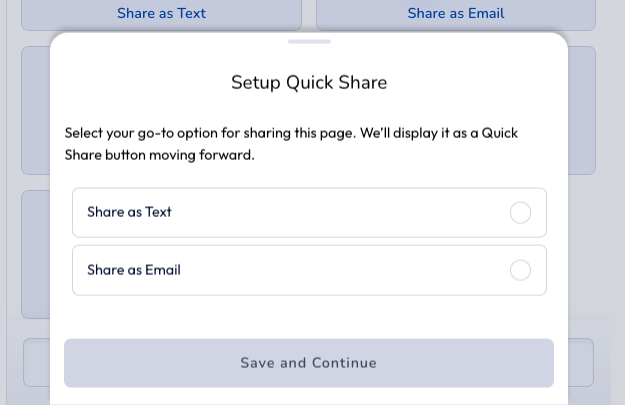
You’ll see a screen titled Setup Quick Share.
-
Choose your preferred sharing method:
-
Share as Text → Sends your Linq Page link via SMS.
-
Share as Email → Sends your Linq Page link via email.
-
-
Tap Save and Continue to confirm.
Once saved, your Quick Share button will appear as a dedicated option whenever you access the Share screen.
How to Use Quick Share
After setup:
-
Open your Share menu from your page.
-
Tap your Quick Share button (Text or Email).
-
Enter the recipient’s name and contact info, then send — your Linq Page will automatically be shared using your preferred method.
-
You cannot update your Quick Share preference once you set it up. It is permanent.