
🧩 What “Request New Line” Does
In the Reseller Partner Portal, Lines represent the phone numbers your clients use for calling and messaging.
The Request New Line feature lets you:
-
Add brand-new phone numbers to your account
-
Make those numbers available to assign to sub-accounts (clients, teams, campaigns)
-
See those new lines and their charges reflected in billing and analytics
✅ Before You Request a New Line
Make sure:
-
You’re able to log in to the Reseller Partner Portal
-
Your account has a valid payment method on file (credit/debit card)
-
You do not have outstanding unpaid invoices
If there are Outstanding Charges, you may be blocked from requesting new lines or porting existing lines until those balances are paid.
You can confirm this in the Billing Summary section under Outstanding Charges.
📞 How to Request a New Line
-
Go to the Dashboard
-
Open the Reseller Partner Portal.
-
Navigate to the area that shows your line status summary (In Progress, Active, Flagged, etc.).
-
-
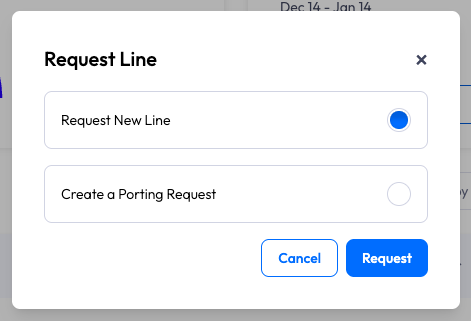
Click “Request New Line”
-
This button is available from the Dashboard area, or in a sub-account.
-
It starts the new line provisioning request.
-
-
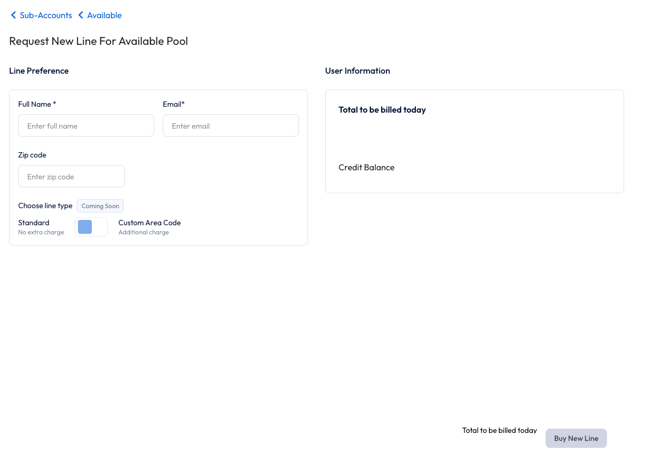
Complete the request form
-
Follow the on-screen steps to:
-
Confirm how many lines you’re requesting
-
Provide any required account or sub-account context
-
-
-
-
Submit the request.
-
-
Monitor line status
-
Newly requested lines will appear with a status such as:
-
In Progress – being provisioned
-
Active – ready for use once setup is complete
-
-
If the system uses an Available Pool, new lines may first appear there until they are assigned to specific sub-accounts.
-
🔁 How Porting Requests Are Different
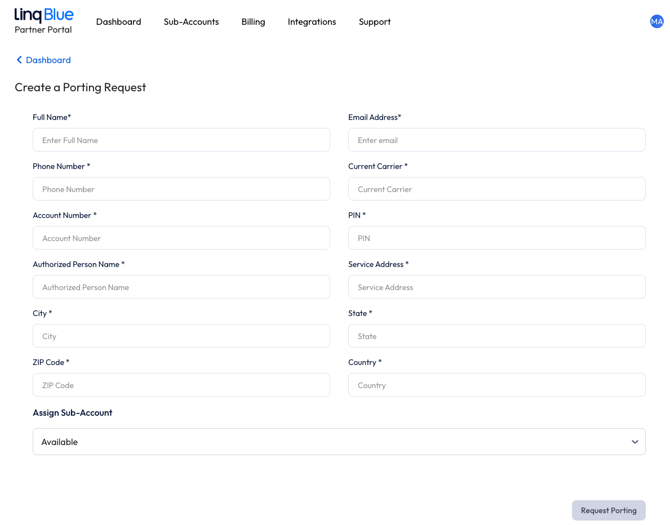
In addition to requesting brand-new numbers, you may also see a “Porting Request” option:
-
Request New Line → brand-new number provided by Linq
-
Porting Request → bring your existing phone number onto the platform
Porting has its own operational and billing behavior:
-
Charges apply based on the port completion date, not just when you submit the request.
-
Ported lines will appear in Lines Management and in billing summaries once they’re active.
💳 How New Lines Affect Billing
New lines are tied into the Billing Summary, Upcoming Invoice, and Invoice Details pages:
-
Billing Summary
-
New line charges appear in New Charges during the current billing cycle.
-
Your ability to request more lines can be blocked if Outstanding Charges exist.
-
-
Upcoming Invoice
-
Shows a preview of what you’ll be billed on your next billing day.
-
New lines that will be active on that date are included in the upcoming total.
-
-
Invoice Details
-
When the invoice is generated, each line’s cost appears under the appropriate sub-account with:
-
Line quantity
-
Per-line rate
-
Discounts, credits, or proration (if applicable)
-
-
If you add lines mid-cycle, charges may appear as a mix of:
-
Prorated amounts for the remainder of the current billing period
-
Full recurring amounts on the next scheduled bill
📁 Where New Lines Show Up (Operationally)
After your request is processed:
-
Lines Management
-
Status updates (In Progress → Active)
-
Flags if there are issues with any line
-
-
Sub-accounts
-
Lines can be assigned to specific clients/teams
-
Unassigned lines may appear in an Available Pool until assigned
-
-
Analytics
-
Once lines are active and sending messages, their traffic contributes to:
-
Total Messages
-
Response Rate
-
New/Responded Conversations
-
Volume Limit usage
-
-
This makes it easy to connect line requests → usage → billing → performance.