
Overview
In the Reseller Partner Portal, your GoHighLevel (GHL) agency is already connected at the organization level.
From there, you can:
-
Map each Linq sub-account → a specific GHL sub-account
-
Confirm that syncing is working correctly
-
Change or deactivate mappings as accounts move, merge, or close
You do not need to re-connect GHL at the agency level. All configuration happens at the sub-account level.
1. Before You Start
Make sure you have:
-
Admin access to your GHL Agency account
-
Admin access to your Linq Reseller Partner Portal
-
A list of:
-
Which Linq sub-account should map to which GHL sub-account
-
2. Configure GHL Sub-Accounts in the Partner Portal
Since the agency is already integrated, you’re just telling Linq which GHL sub-account goes with which Linq sub-account.
Steps
-
Log in to your Reseller Partner Portal.
-
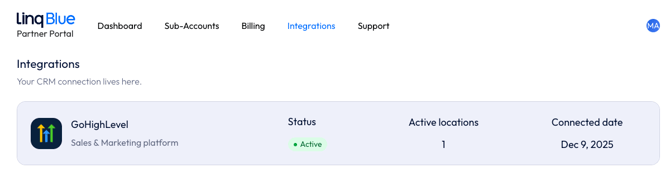
Navigate to Integrations.
-
Click on your existing GoHighLevel integration.
-
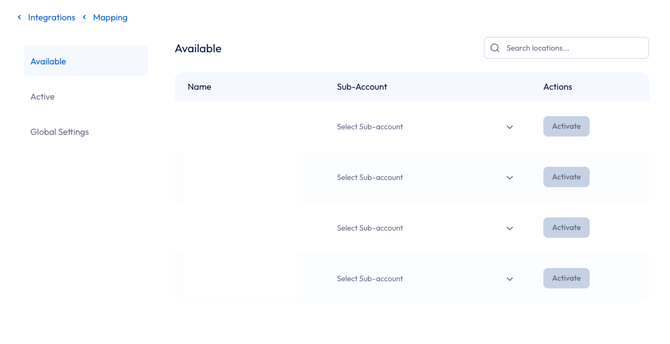
Under the Sub-accounts section, find the Linq sub-account you want to configure.
-
Use the GHL Sub-account dropdown to:
-
Select the correct GHL sub-account for that client/org.
-
-
Click Activate (or Save) to turn on syncing for that mapping.
Repeat these steps for each Linq sub-account you want connected to GHL.
3. Changing or Removing Sub-Account Mappings
You can safely update mappings as clients move, restructure, or offboard.
A. Change the mapped GHL sub-account
-
In the Partner Portal, go to Integrations → GoHighLevel.
-
Under Sub-accounts, locate the Linq sub-account you want to adjust.
-
In the GHL Sub-account dropdown, select a different GHL sub-account.
-
Click Save / Update to apply the change.
Use this when a client moves to a new GHL sub-account, or you need to correct a mapping.
B. Deactivate a mapping
-
In the same Integrations → GoHighLevel view, find the relevant Linq sub-account.
-
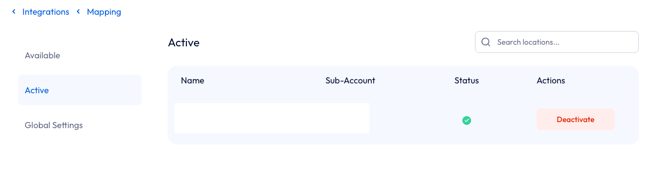
Click the status toggle (e.g., Active → Deactivate).
-
Confirm deactivation when prompted.
Note:
Deactivating a mapping is usually for:
Decommissioned clients
Sub-accounts that are no longer active
Temporary pauses in syncing
Before deactivating, consider any impact on reporting, automations, or call/message logging that rely on this connection.