
🪪 NFC Troubleshooting for Metal Linq Cards
Last Updated: Oct 2025
Applies To: Linq Metal Cards, Linq Tap Products, and all NFC-compatible devices
Overview
If your Linq metal card isn’t tapping correctly or doesn’t pull up your profile on another phone, it’s often related to NFC signal interference or phone setup.
Below are the most common causes and how to fix them.
1️⃣ Check Your Product and Case
-
Metal phone cases block NFC. Remove any metal case or accessory when tapping.
-
Wood, plastic, or silicone cases work fine and won’t interfere.
-
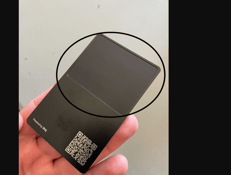
Make sure you’re using the correct side of your Linq Metal Card:
-
Only the outlined square contains the NFC antenna.
-
Tap using that side only.
-
The rest of the card is solid metal and will block the signal.
-
2️⃣ Check the Receiving Phone
-
The other person’s phone must be awake and unlocked.
-
iPhone XS/XR or newer: The NFC notification should appear automatically near the top of the screen when you tap.
-
Older iPhones:
-
Open Control Center → tap the NFC reader icon before scanning.
-
Then bring your Linq card to the top area of the phone.
-
-
Older phones without NFC:
-
Have them open the camera and point it at your QR code — either on your Linq product or from your Linq App under Share → QR Code.
-
3️⃣ Android Devices
-
Some Androids require NFC to be turned on manually.
-
Go to Settings → Bluetooth & Device Connection → NFC → Turn On.
-
-
NFC antennas vary by device:
-
Most Android phones have the NFC reader near the center or lower-back area of the device.
-
Adjust where you tap until the phone recognizes the tag.
-
4️⃣ iPhone Tap Location Tips
-
The iPhone’s NFC reader is located in the top ¼ of the phone (front or back).
-
Bring your Linq product to that top section — not the middle or bottom.
📸 [Insert Image Placeholder: “Tap Area on iPhone”]
5️⃣ Still Not Working?
If tapping still doesn’t open your Linq page:
✅ Try scanning the QR code as a fallback.
✅ Verify your Linq product is activated and linked to your page in the Linq App.
✅ Make sure the receiving phone isn’t in Airplane Mode or Do Not Disturb (some modes may pause NFC).
✅ Test with another device to isolate whether the issue is your card or the receiving phone.
Summary
Most tap issues come down to:
-
Using the wrong side of a metal card
-
NFC turned off or phone locked
-
Tapping in the wrong spot on the phone
Follow the tips above, and your Linq product should tap smoothly on any modern smartphone.