
Phone Numbers Page (API Tools in Linq Zero)
The Phone Numbers page in the API → Developer Tools section of Linq Zero gives you a central place to monitor every Linq number on your account—who owns it, whether it’s healthy, and how it’s being used.
Use this page to:
-
See all active and in-progress numbers at a glance
-
Check number status (Active, Limited, etc.)
-
Review recent iMessage vs SMS/RCS traffic for troubleshooting and coaching
1. How to Access the Phone Numbers Page
-
Sign in to Linq Zero.
-
In the left sidebar, scroll down and click API.
-
Under Developer Tools, select Phone Numbers.
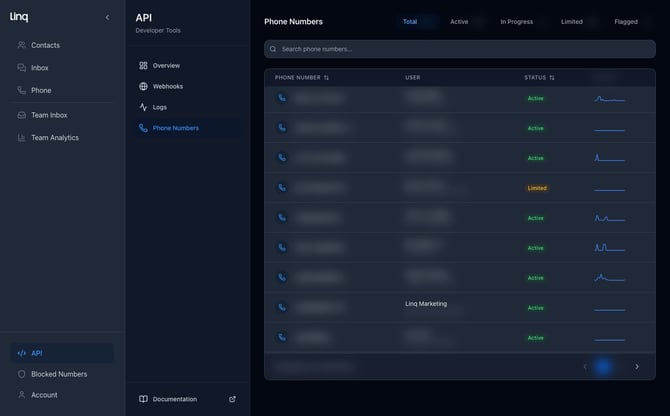
You’ll see a table of all numbers associated with your account.
2. Phone Numbers List Overview
At the top of the page you’ll see:
-
Search bar – filter by phone number.
-
Status filters – tabs for:
-
Total – all numbers
-
Active – active and sending normally
-
In Progress – provisioning/activation in progress
-
Limited – sending is restricted to protect number health
-
Flagged – requires review by Linq
-
The table includes these key columns:
-
Phone Number.
-
User – the primary user or owner associated with the line.
-
Status – current state of the number (see next section).
-
Usage (24h) – a small chart showing relative message activity for the last 24 hours.
Use this list to quickly find a specific number and confirm whether it’s active and being used.
3. Number Status Definitions
You may see the following statuses:
-
Active
-
The number is provisioned and allowed to send and receive messages/calls normally.
-
-
In Progress
-
The number is being set up (for example, provisioning or initial configuration).
-
Traffic may be limited or unavailable until setup is complete.
-
-
Limited
-
Linq has placed temporary limits on the number’s outbound messaging to protect number health (for example, after low response rates or unusual traffic patterns).
-
The line can still receive messages and may send at a reduced rate.
-
See the Linq Blue Best Practices article for guidance on improving engagement and restoring full capacity.
-
-
Flagged
-
The number requires manual review (for example, due to repeated issues or risk signals).
-
If you’re troubleshooting delivery issues, always check the number’s Status first.
4. Viewing Detailed Usage for a Number
To drill into a specific number:
-
On the Phone Numbers page, click any phone number row.
-
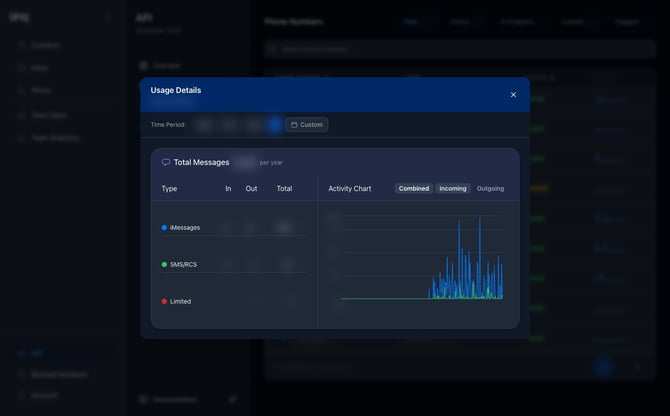
The Usage Details window will open.
4.1 Time Period
At the top of the Usage Details window you can choose a time range:
-
24h, 7d, 30d, 1y, or Custom
This controls the metrics and chart shown below.
4.2 Message Breakdown
The Total Messages panel shows:
-
Total messages per day for the selected period
-
Per-type breakdown, with counts for:
-
iMessages – blue-bubble traffic
-
SMS/RCS – green-bubble or carrier traffic
-
Limited – messages that were restricted or not sent due to limits
-
For each type you’ll see:
-
In – messages received
-
Out – messages sent
-
Total – overall volume for that type
4.3 Activity Chart
On the right side you’ll see an Activity Chart that visualizes traffic over time.
You can switch the chart view between:
-
Combined – incoming and outgoing shown together
-
Incoming – only received messages
-
Outgoing – only sent messages