
Linq Zero – API Tools
1. Purpose & Scope
This Article explains how to use all API tools inside Linq Zero:
-
Overview (integration token + API playground)
-
Webhooks (create, edit, debug)
-
Logs (webhook delivery logs)
-
Phone Numbers (status + usage analytics)
It covers what each area does, when to use it, and what Support should check when helping customers.
2. Access & Navigation
-
Log in to Linq Zero.
-
In the left sidebar, click API
-
Use the sub-navigation:
-
Overview
-
Webhooks
-
Logs
-
Phone Numbers
-
Only users with appropriate permissions should have access to this section (typically admins / technical owners).
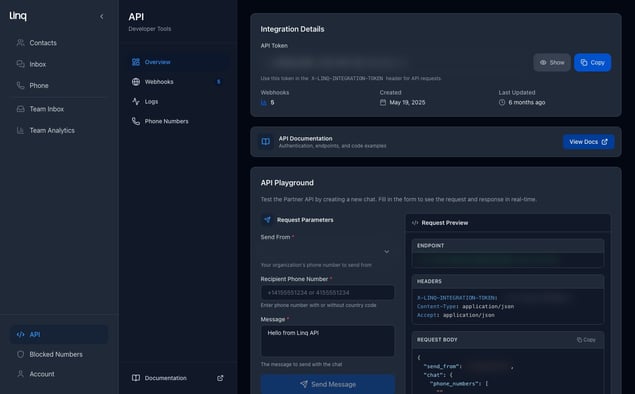
3. Overview Page
The Overview tab is the starting point for all API integrations.
3.1 Integration Details
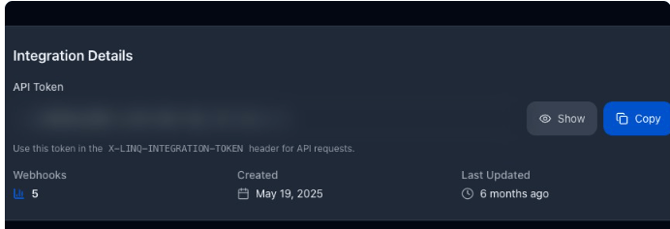
API Token
-
Used as a bearer token in the
X-LINQ-INTEGRATION-TOKENheader for all Partner API calls.
3.2 API Playground
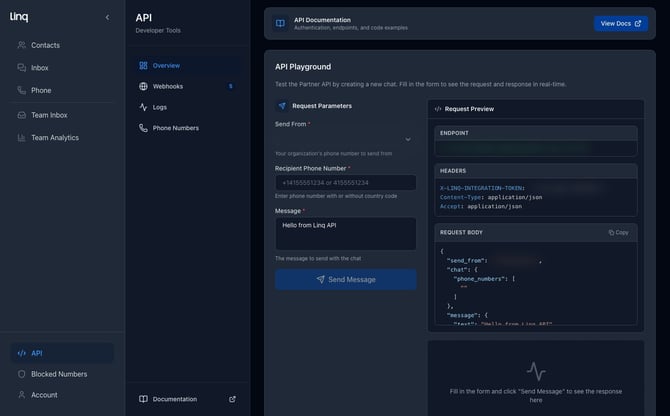
Purpose: Send test messages via the Linq Partner API without writing code.
Fields
-
Send From – dropdown of the organization’s numbers (e.g. Blue / Zero lines).
-
Recipient Phone Number – target number (E.164 or local formats supported as configured).
-
Message – text body of the message.
Right side: Request Preview
-
ENDPOINT – HTTP method + URL (e.g.
POST https://api.linqapp.com/api/partner/v2/chats) -
HEADERS – includes
X-LINQ-INTEGRATION-TOKENand content-type. -
REQUEST BODY – JSON payload being sent.
How to send a test
-
Go to API → Overview → API Playground.
-
Select a Send From number.
-
Enter your own mobile number (recommended) as Recipient.
-
Type a short test message.
-
Click Send Message.
-
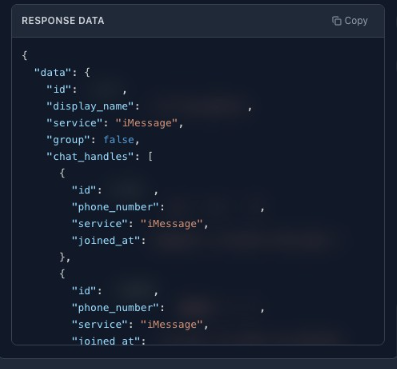
Watch the bottom panel for the API response.
Best practices
-
Use this for low-volume testing only, not production broadcasts.
-
Always test with your own or test numbers first.
4. Webhooks
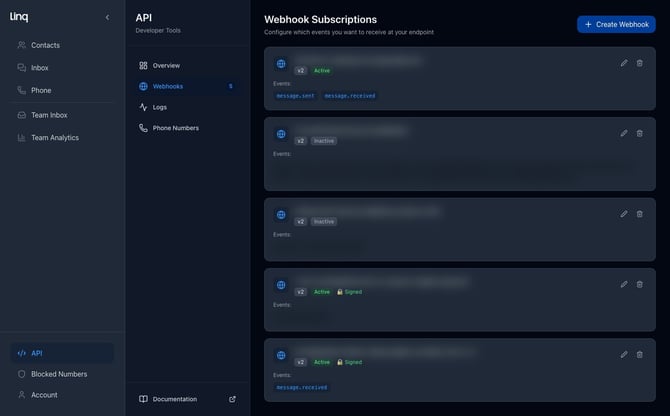
The Webhooks tab controls outbound events from Linq Zero to the customer’s server.
4.1 Concept
A webhook tells Linq, “Whenever X happens (e.g., a message is received), send an HTTP POST to this URL with the details.”
4.2 Viewing Existing Webhooks
On API → Webhooks you’ll see a list of existing subscriptions:
Each row shows:
-
Webhook URL
-
API Version (v1 or v2 – recommended)
-
Status (Active / Inactive)
-
Events subscribed (chips such as
message.sent,message.received,call.completed, etc.) -
Actions – edit ✏️ or delete 🗑️
Support can quickly confirm:
-
Does the customer already have a webhook configured?
-
Is it Active?
-
Are the expected events turned on?
4.3 Creating a New Webhook
-
Go to API → Webhooks.
-
Click + Create Webhook (top-right).

-
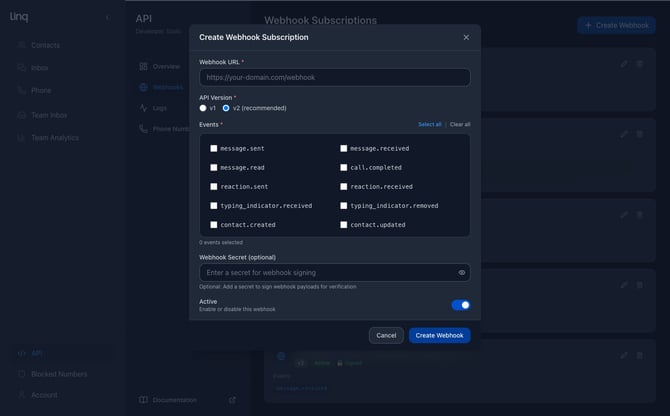
In the Create Webhook Subscription modal:
-
Webhook URL
-
Must be HTTPS and reachable from the public internet.
-
Example:
https://customer-domain.com/linq/webhook.
-
-
API Version
-
Select v2 (recommended) unless the customer explicitly uses v1.
-
-
Events (checkboxes)
-
Messaging
-
message.sent– Linq sent a message. -
message.received– Linq received a message from the contact. -
message.read– read receipt (where supported).
-
-
Calls
-
call.completed– outbound or inbound call completed.
-
-
Typing & Reactions
-
typing_indicator.received/typing_indicator.removed -
reaction.sent/reaction.received
-
-
Contacts
-
contact.created/contact.updated
-
Ask the customer what they’re building and only enable what they need.
-
-
Webhook Secret (optional)
-
If the customer wants signed webhooks, enter a secret string.
-
Their backend should validate signatures before processing.
-
-
Active toggle
-
Leave Enabled to start receiving events immediately.
-
Turn off to create it in a “paused” state.
-
-
-
Click Create Webhook.
4.4 Editing or Deleting a Webhook
-
Edit
-
Click the icon on a subscription.

-
Adjust URL, events, secret, or
Activetoggle. -
Save changes.
-
-
Delete
-
Click the 🗑️ icon.
-
Confirm deletion.
-
Once removed, no more events will be sent to that URL.
-
5. Logs (Webhook Delivery Logs)
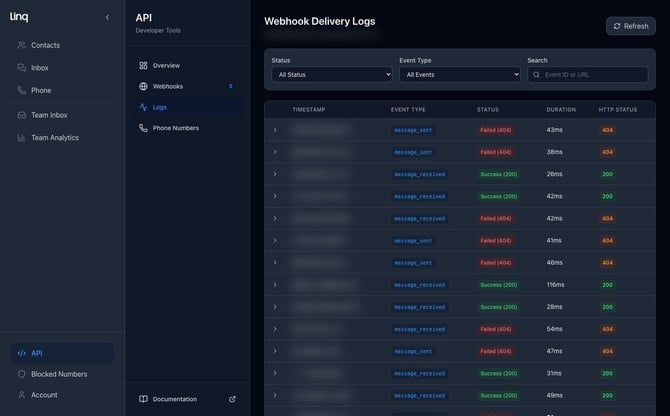
The Logs tab surfaces granular details of webhook deliveries.
5.1 List View
Columns:
-
Timestamp – when Linq attempted delivery.
-
Event Type – e.g.
message_sent,message_received,call_completed. -
Status –
Success,Failed,Pending. -
Duration – server response time (e.g.
41 ms). -
HTTP Status – HTTP status returned by the customer’s endpoint.
Filters:
-
Status dropdown – All Status / Success / Failed / Pending.
-
Event Type dropdown – narrow to specific events.
-
Search – by Event ID or webhook URL.
5.2 Detail View
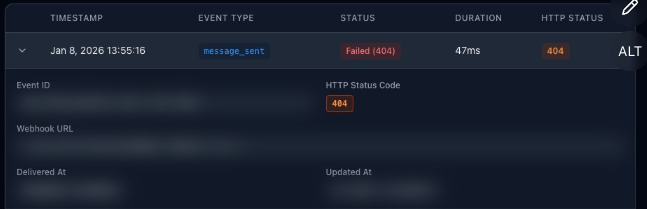
Click the chevron ▸ on a row to expand:
-
Event ID – unique identifier (used for debugging or replay requests).
-
Webhook URL – target endpoint.
-
HTTP Status Code – summarised again.
-
Delivered At / Updated At timestamps.
6. Phone Numbers (API → Phone Numbers)
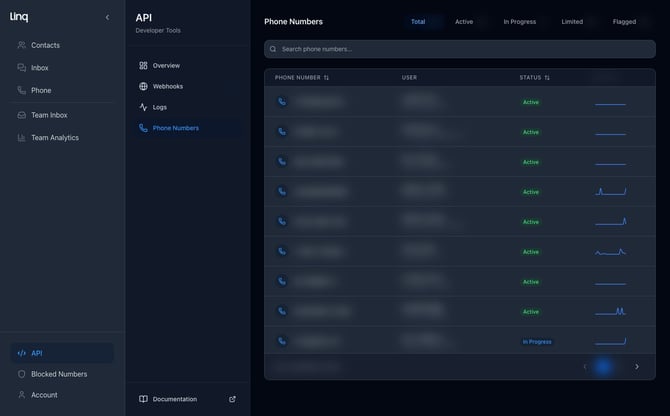
The Phone Numbers tab shows all numbers available to the organization for API use.
6.1 List View
Top filters:
-
Total / Active / In Progress / Limited
-
Active – fully usable numbers.
-
In Progress – provisioning or warming.
-
Limited – sending caps currently applied.
-
Columns per row:
-
Phone Number – clickable.
-
User – assigned primary user / owner.
-
Status – Active, In Progress, Limited
-
Usage (24H) – small sparkline of recent activity.
Use the search bar to filter by number.
6.2 Usage Details Modal
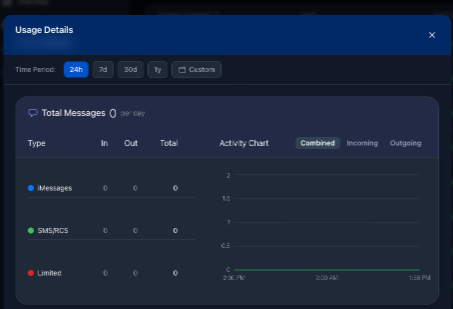
Click a phone number to open Usage Details:
-
Time Period –
24h,7d,30d,1y, orCustom. -
Total Messages per day.
-
Type breakdown:
-
iMessages – in, out, total.
-
SMS/RCS – in, out, total.
-
Limited –user is response limited
-