
How to Set Up a “Wait for Reply” Workflow in HubSpot (Using Linq SMS)
You can automatically pause a workflow in HubSpot until a contact replies to your Linq SMS message. This allows you to create smarter follow-up paths—one for contacts who reply and another for those who don’t.
This guide walks you through setting up a Send SMS → Wait for Reply → Branch workflow step-by-step.
✅ What You’ll Need
Before you begin:
-
Your HubSpot account must be connected to Linq
-
You must be able to use Send SMS (Linq) in workflows
-
Your contacts should have a valid phone number stored in a phone property
🛠 How to Build a Wait for Reply action in your workflow
1. Open Workflows
-
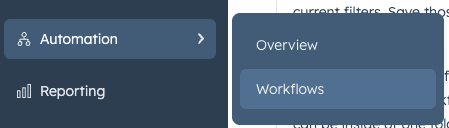
In HubSpot, go to Automation → Workflows
-
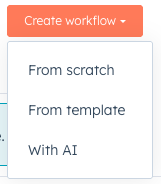
Create a new workflow or open an existing one
2. Add a “Send SMS (Linq)” Action
-
Click + in the workflow editor

-
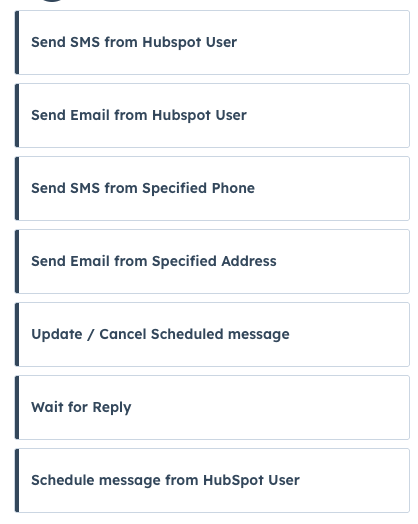
Select Send SMS (Linq)
-
Compose your message
-
Tip: End with a question to increase reply rates
-
-
Click Save
3. Add a “Wait for Reply (Linq)” Action
-
Click + directly after your SMS step
-
Select Wait for Reply (Linq)

-
Configure the settings:
-
Contact phone property: Choose the phone number field used for sending SMS

-
Wait time: Enter how long HubSpot should wait for a reply (e.g.
60= 60 minutes)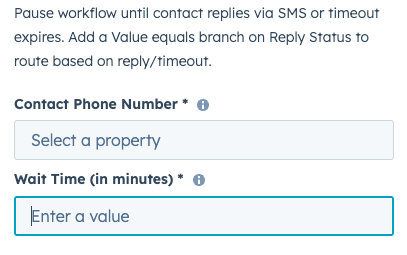
-
-
Click Save
4. Add a Branch (Reply vs No Reply)
-
Click + under the Wait for Reply step
-
Choose If/then branch
-
Set the condition to check Reply Status from the Wait for Reply action
-
Branch 1: Reply Received → Contact replied within the wait window
-
Branch 2: Timeout → Contact did not reply in time
-
5. Add Workflow Actions After Each Branch
If the Contact Replied
You can add follow-ups such as:
-
Confirmation SMS
-
Assigning a task
-
Advancing lifecycle or pipeline stage
-
Enrolling them into another workflow
If the Contact Did Not Reply
Common actions include:
-
Sending a reminder message
-
Updating a status property
-
Ending the workflow
-
Moving to a re-engagement sequence
6. Review and Activate
Before turning on the workflow:
-
Double-check the phone property
-
Confirm the wait time
-
Ensure both branches have the correct next steps
Then click Turn On.