
🪪 Managing Linq Products & Reassigning Pages
Overview
Each Linq product (card, tag, bracelet, badge, hub, etc.) can be linked (or “paired”) to a specific Linq Page.
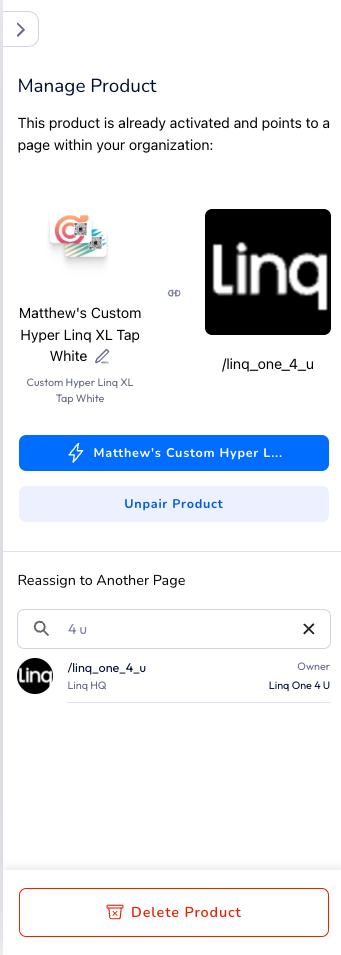
The Manage Product screen lets you view which page a product currently points to, unpair it, or reassign it to another user or page within your organization.
Accessing Product Management
🔄 Reassigning a Product to Another PageIf a user leaves the company, switches roles, or needs their product redirected to a new profile:
|
|
🧹 Unpairing a Product
If you need to completely remove the product’s connection (without reassigning it yet):
-
Click Unpair Product.
-
Confirm the action in the pop-up.
-
The product will become unassigned and available for pairing again.
-
The product can then be reassigned later by an admin or the same user.
🔒 Only admins and owners of the product’s organization can unpair or reassign products.
🗑️ Deleting a Product
Use Delete Product only if the product is permanently decommissioned or no longer usable (e.g., damaged or lost).
-
It will remove all link associations and product metadata.
-
The product will no longer appear in your organization’s dashboard.
💡 Best Practices
| Scenario | Recommended Action |
|---|---|
| Employee leaving the company | Reassign product to another active user |
| Product mislinked or testing setup | Unpair and reassign |
| Product lost or damaged | Delete the product |
| Organization rebranding | Rename page and keep same product link |
🔍 Notes & Permissions
-
Admins can manage all products within their organization.
-
Members can only view or unpair their own assigned products.
-
Reassignment is limited to pages within the same organization.
-
NFC and QR links update automatically — no reprinting or re-encoding required.
Troubleshooting
| Issue | Solution |
|---|---|
| Product not appearing in dashboard | Ensure it’s activated under the correct organization. |
| “Unpair” or “Delete” button grayed out | You may not have admin rights. Contact your org admin. |
| Reassigned product still showing old page | Try refreshing the app or clearing cache — the update propagates instantly but may require a refresh. |
| QR code still points to old user | QR codes are dynamically linked; if issue persists, contact Linq Support for link refresh. |