
Prerequisites:
-
Active Linq Blue account
-
Custom JavaScript provided by your Partner Success Manager
-
Completed GoHighLevel Integration
Access Points for Voice Memos:
Voice memos can be recorded and sent from two locations within GHL:
Access Points for Voice Memos:
Voice memos can be recorded and sent from two locations within GHL:
- Contact Detail Page
- Navigate to the contact’s profile.
- Locate the Voice Memo / Voice Message option.
- Click Record, speak your message, and send directly to the contact.
- Conversations Page
- Open any active conversation.
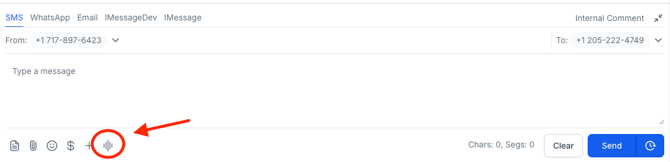
- Click on the Microphone Icon to start recording.
- Record your voice memo and send it within the ongoing thread.
Step 1: Setup and JS Installation:
-
Go to your Agency Account.
-
Click on Settings (bottom-left corner).
-
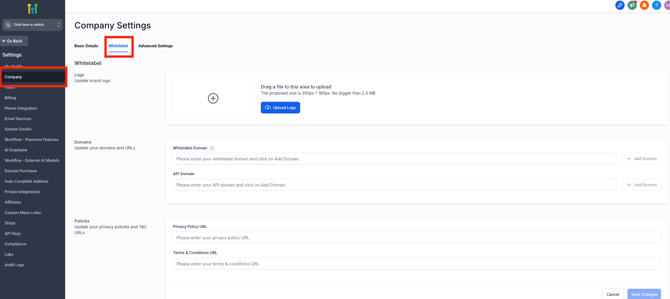
Select Company and then White Label.
-
Scroll down to Custom JS.
-
Copy the appropriate JavaScript code.
-
Click Save Changes to enable voice memo functionality. (Tip: refresh page at least 3 times)
Step 2: Recording a Voice Memo:
- Navigate to either Contact Detail Page or Conversations Page.
- Click the Record Button shown in below picture.
- Speak clearly and concisely.
- After recording, review your voice memo.
- Click Send to deliver the message.
Best Practices:
- Keep memos under 60 seconds for clarity.
- Use a quiet environment to avoid background noise.
- Confirm the message was delivered and heard by the recipient.
Maintenance & Troubleshooting:
- If recording fails:
- Check microphone permissions.
- Refresh your browser or app.
- Verify JS installation and Blue Number mapping.
- If sending fails:
- Check internet connectivity.
- Retry sending from the conversation thread.