
Purpose
To ensure that outbound calls from GoHighLevel (GHL) display your Linq Blue number as the Caller ID, and that inbound calls to your Blue number are routed through your LeadConnector dialer. This maintains a consistent communication experience for customers and accurate tracking in your CRM.
Section 1: Purchasing a LeadConnector Number in GHL
Instructions:
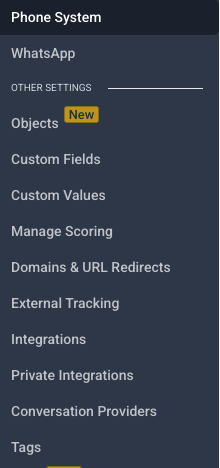
- Go to Settings → Phone System

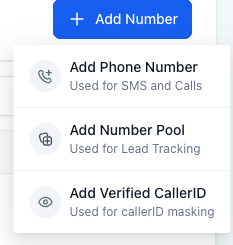
- Click Add Number → Add Phone Number (Used for SMS and Calls)
2. Select Desired Phone Number from the available list
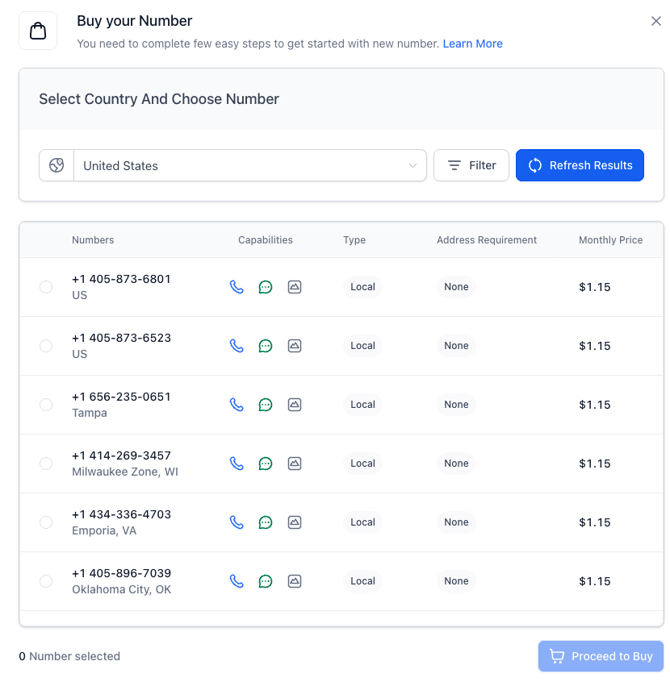 3. Click Proceed to Buy to complete the purchase
-
- Example cost: $1.15 per month
📌 Tip: Choose a local number to match your target audience’s area code for higher answer rates.
Section 2: Verify Your Blue Number for Outbound Caller ID
This ensures your Linq Blue number appears when making outbound calls, while the calls still route through LeadConnector.
Instructions:
-
Log into GHL
- Navigate to: Settings → Phone Numbers → Verified Caller IDs
-
Add Your Blue Number
- Click Add New Number → Add Verified ID

- Enter your Personal number
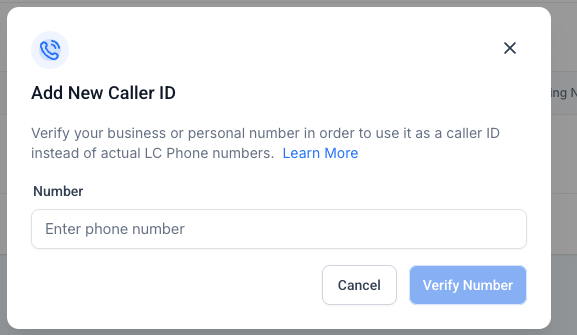
- Click Verify Number
-
Answer the Verification Call
- A call will come through to your Blue number.
- Answer and enter the 6-digit verification code
-
- Under Caller ID, select your verified Blue number
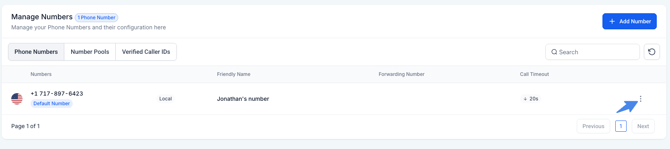 Select Edit Configuration
- Go to Settings → Phone Numbers
- Click the 3 dots next to your LeadConnector number
Set Your Blue Number as Caller ID

.png?width=613&height=515&name=Linq-06-24-2025_01_57_PM%20(3).png)
- Click Save
- Under Caller ID, select your verified Blue number
✅ Outbound calls will now display your Blue number as the caller ID (the same number customers see in texts).
Section 3: Forward Inbound Calls to Your LeadConnector Dialer
This step ensures inbound calls to your Blue number are forwarded and logged properly in GHL.
Instructions:
- Go to the Linq Tab in GHL
- Navigate to: Linq → Phone Forwarding Settings
- Set Forwarding Rules
- For each Blue number listed:
- Set the Forward Number field to your LeadConnector number
- Click Save Changes
- For each Blue number listed:
📞 Inbound calls to your Blue number will now forward to your LeadConnector dialer and be logged normally.
Optional: Linq Dialer JavaScript Integration
If you do not want to purchase a LeadConnector number, you can use the Linq Dialer directly inside GHL by embedding the Linq Dialer JavaScript.
Requirements:
- Must have Agency Admin access to GHL.
- No access to logged or tracked calls inside GHL when using Linq Dialer this way.
Instructions:
- Go to: Agency Settings → Company → Custom JS
- Install the Linq Dialer JavaScript snippet (provided by Linq)
- Embed the dialer in a custom dashboard or page inside GHL
- Configure click-to-call functionality using your Linq Blue number
Important Notes:
- ✅ LeadConnector Number Required To Use GHL Dialer
- ❌ Calls are NOT logged or tracked using Linq Dialer
- ✅ Great for users who only need outbound dialing without CRM tracking
- ✅ Full dialer access inside GHL via custom embedded page
Outcome
- Outbound calls display your verified Blue number.
- Inbound calls to your Blue number forward to your LeadConnector dialer and are tracked properly in GHL.
- Optional Linq Dialer JavaScript integration is available for users without a LeadConnector number, but without logged call tracking in GHL.