
How to Use Snippets with Linq Phone (Linq One/Blue)
Step 1: Open Your Linq Account
You can use Snippets from either mobile or desktop:
-
Open the Linq app, or
-
Go to linqapp.com/welcome on your computer and log in.
Step 2: Start or Open a Conversation
You can get to Snippets from:
Option A – From a contact
-
Go to the Contacts section.

-
Select the contact you want to text.
-
Tap Text to start a new conversation with your Linq Phone number.

Option B – From an existing conversation
-
Go to your Linq Phone tab (Messages/Calls area).
-
Open the conversation where you want to send a Snippet.
Either way, you’ll land in the conversation view with the text field at the bottom.
Step 3: Open the Snippets Menu
-
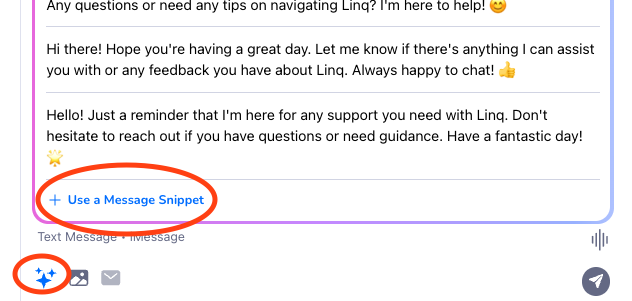
In the conversation, look at the left side of the text field.
-
Tap the AI button (the small icon that looks like a cluster of stars ✨).
-
A menu will appear with:
-
An option to Use a message Snippet, and
-
(In ongoing conversations) some recommended responses.
-
Step 4: Insert a Snippet
-
Tap Use a message Snippet.
-
Choose one of your existing Snippets from the list.

-
The Snippet text will automatically populate the text field.
You can edit the text if needed before sending (for personalization, names, specifics, etc.).
Step 5: Send the Message
-
Once the Snippet looks good, tap Send.
-
Your message will be delivered from your Linq Phone number as usual.