
How to Make a Bulk Order Using the Linq Website Designer
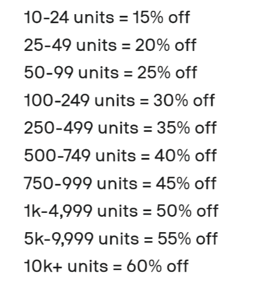
You can place bulk orders directly through our website. Bulk discounts apply automatically starting at 10 units, and the website will update pricing for you in real time.
If your team needs different names, titles, or unique artwork per card, each card will need to be designed individually—but there’s a fast workflow to make the process smooth.
Before You Start
If each card includes unique details (name, role, logo variation, etc.):
➡️ You only need to design the first card from scratch.
➡️ After that, you’ll reuse your saved design template and simply update the text.
Step-by-Step: Designing Cards for a Bulk Order
1. Open the Designer
- Log into Linq Dashboard
- Navigate to Products
-
Choose your product (e.g., Classic Card, Custom Card, Hyper Card – Custom)
-
Select your color or finish
-
Click Add Your Design
2. Upload Your Artwork
-
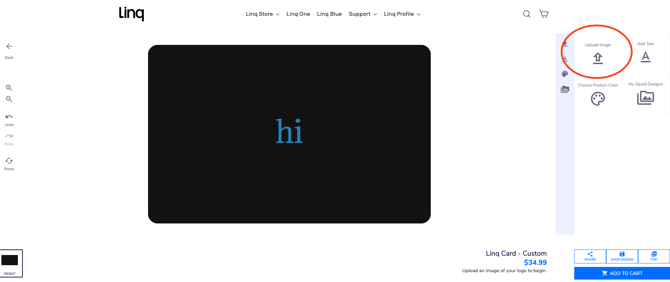
Click Upload Image
-
Select your logo or artwork file
-
It will appear on the card preview
Use the four corner handles to:
-
Resize
-
Move
-
Rotate
-
Delete (trash can icon)
3. Add Text (Name, Title, etc.)
-
Click Text
-
Type your name / title / other information
-
Choose font + color
-
Use the corner handles to position it where needed
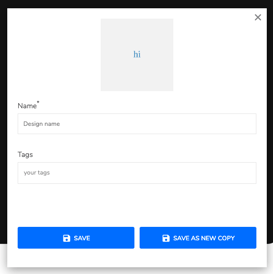
4. Save Your First Design
Once the first card is complete:
-
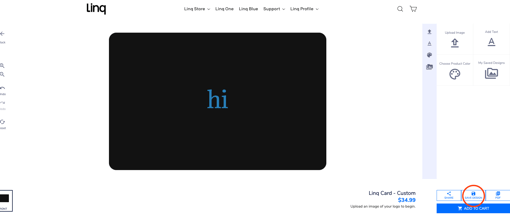
Click Save Design (bottom-right corner)
-
Add this first card to your cart
You now have a reusable design template.
5. Design the Remaining Cards Quickly
For each additional card:
-
Return to the product page
-
Click Add Your Design again
-
In the designer, select My Saved Designs
-
Load your previously saved design
-
Edit only the text that needs to change (name, title, etc.)
-
Save → Add to cart
-
Repeat for each card
This method ensures consistent layout, alignment, and formatting—without recreating each card from scratch.
FAQs
Do bulk discounts apply automatically?
Yes! Discounts begin at 10 units and increase with higher quantities. The cart shows all pricing updates automatically.
Can each card have a different name or title?
Absolutely—but each version needs to be created individually by loading your saved template and updating the text.
Can I upload a different image for each card?
Yes. Just replace the logo/artwork in the designer when creating a new version.
Does this work for Hyper cards?
Yes—Hyper Custom cards use the same designer interface.
Need Help?
If you run into any issues or have questions about bulk ordering, feel free to reach out to our support team—we’re always happy to help.