
Purpose:
The Contacts tab allows you to view, manage, tag, and organize all contacts connected to your Linq organization — including those synced from integrations like HubSpot, Salesforce, or GoHighLevel.
Accessing the Contacts Tab
-
Log in to your Linq Admin Dashboard.
-
In the left-side navigation menu, click Contacts.
-
You’ll see a searchable list of all contacts within your organization.
Main Features
1. Contact List View
Displays all contacts with quick access to name, title, and company information.
You can view by:
-
All Contacts
-
Team-specific tabs
-
Custom segments (e.g., “Sales,” “HQ,” or “Events”)
Use the Search bar to find specific contacts or apply filters for more precision.
Click + New to add a new contact manually.
2. Adding a New Contact
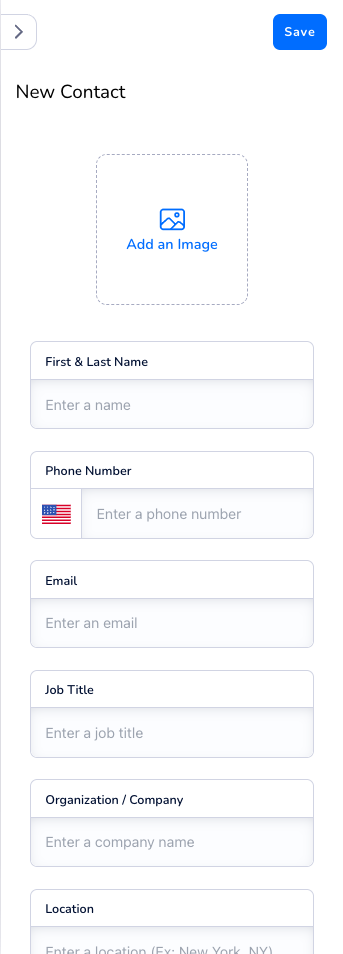
Click + New to open the right-hand panel.
Fill out the contact details:
|
|
Click Save once completed.
3. Selecting and Managing Multiple Contacts
You can select multiple contacts to perform batch actions.
Click Select at the top, then choose your contacts.
Available actions include:
-
Export (.CSV) — Download selected contacts.
-
Add a Tag — Apply tags for segmentation.
-
Share — Share contact details internally or externally.
💡 Note: Some actions are unavailable when combining personal and team contacts.
4. Viewing Individual Contact Details
Click on a contact to open their profile view.
This view includes:
-
Email and Message Buttons for direct communication.
-
Recent Activity Log (e.g., HubSpot sync events).
-
Tags for lead segmentation.
-
Notes for internal comments or updates.
-
Enhance Contact option to automatically pull additional data from public sources.
5. Contact Insights & Metadata
Hover over the email icon or info icon to see:
-
Email address
-
Contact creation and last updated date.
6. Tags and Organization
Tags help you organize and filter contacts.
Use existing tags or create new ones (e.g., “LFT Lead,” “Hot Lead,” “ILTM Events”).
7. Contact Management Options
From the contact’s profile, click the three dots (⋯) or Manage Contact to open options:
Available actions:
-
Edit Contact Information
-
Setup Contact Reminder
-
Add Note
-
Send Contact to Integration
-
Enrich Contact (pulls additional data automatically)
-
Invite to Linq (sends invitation to join your organization)
-
Download Contact File
-
Make Public
-
Delete Contact
Tips for Success
✅ Use Tags to categorize leads or event attendees.
✅ Check Recent Activity to confirm CRM sync success.
✅ Use Enhance Contact to enrich data for better context.
✅ Regularly export contacts to back up or share with your sales team.