
Automate SMS & Email Workflows for Your Bookings
Overview
This guide walks you through connecting your Calendly account to Linq, mapping users, and building automated workflows that send SMS or email reminders for bookings, consultations, and other scheduled events.
Once integrated, Linq can help reduce no-shows, improve communication, and streamline your entire appointment flow.
Before You Start
Make sure you have:
- An active Calendly account
- Access to Linqapp with integration permissions
- At least one Calendly Event Type already created (e.g. Strategy Call, Demo)
Installation & Setup
Step 1: Connect Calendly to Linq
- Log in to linqapp.com
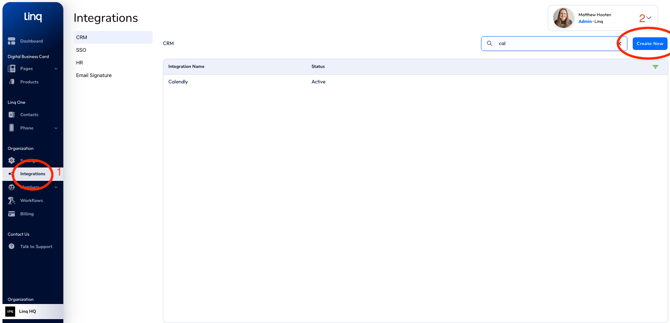
- Go to the Integrations tab in the left menu (Linq Admin Dashboard required)
- Click Create New Integration
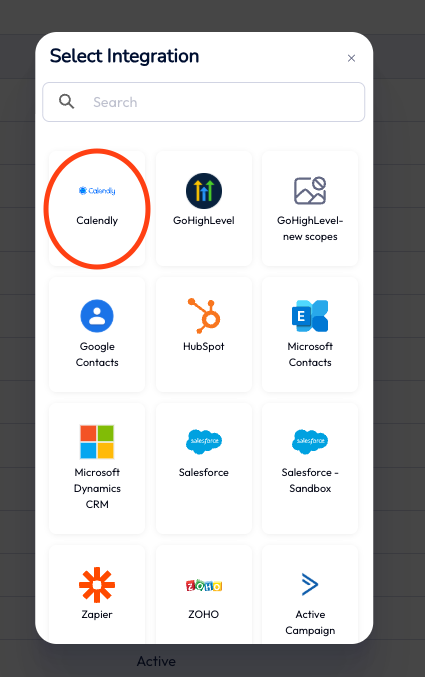
- Select Calendly
- Follow the prompts to connect and authorize your Calendly account
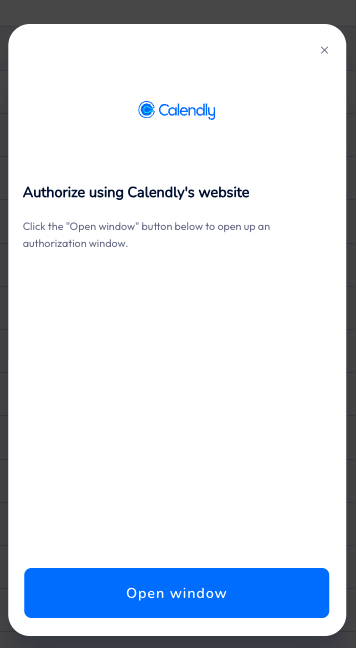
Note: Each Linq organization can have only one Calendly integration. All users will map into that shared connection.
Step 2: Map Users
After connecting Calendly:
- Open your new Calendly integration
- Click into the User Mappings section

- Select a Calendly user and match them to the correct Linq user

- Click Save
- Repeat this for each user who needs booking automation
This ensures workflows trigger from the correct sender.
Step 3: Create Workflows
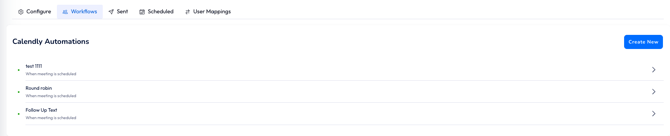
- Go to the Workflows tab within the Calendly integration
- Click Create Workflow
- Fill out the workflow form:
- Trigger (e.g. “When meeting is booked” or “1 hour before meeting”)
- Event Type (from Calendly)
- Phone/Email Field (make sure this exists in your Calendly form)
- Custom Message using fields like attendee name, date, time, host, etc.
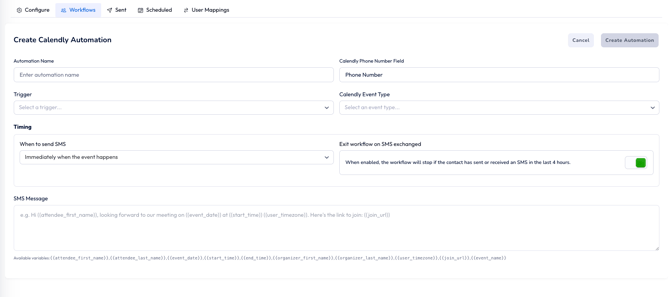
- Choose to send an SMS, email, or both
- Save the workflow to activate it
How to Use
- Ensure workflows are active
- Test by booking a Calendly event with a phone number
- Confirm that your automated message is sent
- Monitor messages from the Sent and Scheduled tabs
Troubleshooting Tips
If event types aren't showing up or messages aren't sending:
- Confirm the integration was authorized correctly
- Ensure Event Types exist in Calendly
- Verify phone or email fields are filled during booking
- Check that user mappings are complete
- Make sure workflows are saved and activated